Posts

How to Root Nokia X2 Android Phone (Friendly trick) :)
Image
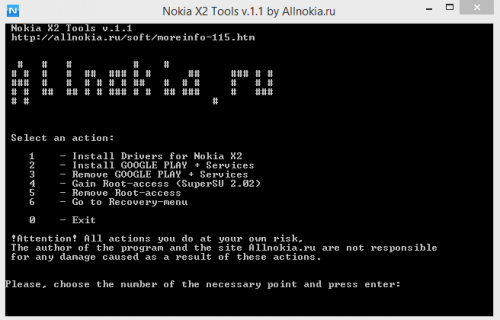
Nokia X2 , which is ironically the last device launched under the Nokia X brand can easily be rooted. Nokia X2 Tools, a Windows utility developed by the Russian fan site (AllNokia.ru) can be used to root Nokia X2 phones easily and without the hassle of typing in the commands in the terminal window.  You can still use the tool if you’ve updated your Nokia X2 to version 2.1.  There is also towelroot method which does not require a PC, but does not seem to be working on phones updated to 2.1. Method 1: Using Nokia X2 Tools Rooting the Nokia X2 is a two-step process when using the Nokia X2 Tools. Follow the steps below to successfully root your Nokia X2 Android phone. Caution@ Do NOT use this tool to install Play Store as your device might get brick ed. 1:Turn on USB Debugging on your Nokia X2 (Settings> Developer options> USB Debugging) 2:Download Nokia X2 tools from here . Run the exe file when downloaded.   You will see above screen after openi...
4 Ways to Make Your Rooted Android Phone Run Faster

Image
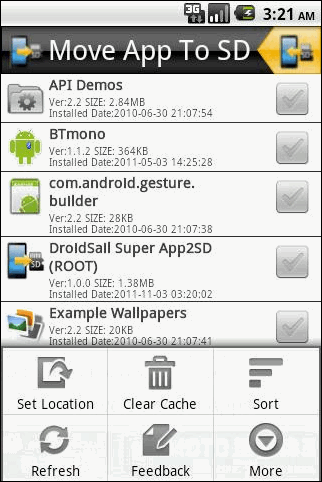
Note: All these tips require skilled hands. If you have no idea about rooting Android phones and installing custom patches, it’s better to stick with the tips we mentioned for the non-rooted phones. Don’t blame us if something goes wrong with your device in the process. 1. Use App2SD app with Root Support. By default, many apps come with the feature of App2SD by default. What this feature does is that it moves few files of an app to your phone’s SD card and creates a symlink to the files on the ROM. Using this feature you can free up some memory on your ROM to increase your phone performance but unfortunately, this feature of App2SD is not available on all the applications by default. However, if you have a rooted phone, you can move any app to and from the SD card using dedicated apps for the purpose. DroidSail Super App2SD (ROOT) is one such app that can help you with the task. 2. Use Overclocked Kernel By default, an Android phone is set to work on a spec...

How to disable bloatware apps without root

Image
  Disable bloatware apps without root You don't need to fully delete bloatware apps to get some peace of mind -- you can disable them and  even stop them from popping notifications. This won't delete the actual application, but it'll be removed from your homescreen/app drawer, and we'll even show you how to free up some space in the process. Simply follow the simple steps outlined in the gallery below, and you're set.  A lot can be said about the toxicity of bloatware apps, but since this guide will be about how to get rid of them, we won't indulge in needless discussion. For those of you not in the know, 'bloatware' refers to all that extra stuff that's been pre-loaded on your device, before you even got to your neighborly carrier's outlet. These often come in considerable numbers, are sometimes downright irritating and take up space, and worst of all -- can't be removed by normal means. The situation is so bad, really, that countrie...

List of Bloatware on the LG Optimus V

This is a list of pre-installed apps (crapware, bloatware, junk...) on the LG Optimus V (LG VM670). These apps are  not part of the "standard" Android 2.2.1 software stack and were added to the phone by Virgin Mobile or LG. In a standard, off-the-shelf phone, these applications can not be uninstalled. (In Settings>Applications>Manage Applications the "Uninstall" button is dark grey and does not respond to a finger press.) In order to uninstall these apps, you must first "root" the phone. However, these apps are  stored in the system partition of the memory, not the user accessible memory partition, so even if you did delete these apps, that would not increase the available user accessible memory. (So, if you are getting a low memory warning, removing these apps won't help.) Because these apps are loaded in the system partition, you can not move these apps to the SD card.   uninstalling the pre-installed apps from the system partition, then re-ins...

One-Click Root Solution for Galaxy S3, S2, Note 2 and More Available

Image
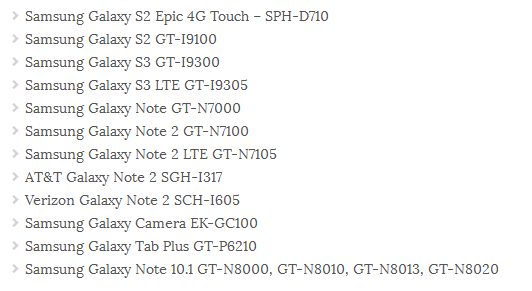
When using a high end Android based smartphone is all about customization and optimization operations, as we can’t stop from improving and upgrading our gadgets for receiving more power, latest apps, new features and a better web browsing experience. But for being able to do the mentioned tasks you must first free your device from the factory restrictions and default settings. Because of that you must learn how to gain access over the internal system of your handset, access that can be granted once you root the OS. As you know, usually the root procedure is quite complex and risky so not all the Android users are able to safely complete the operation. Furthermore, in some cases, while trying to gain root access the phone gets bricked and since the warranty is void, you will find yourselves in an unpleasant situation. In order to avoid these situations, we have the one-click tool, which offers a safe and fast root solution for the Android based devices. Unfortunately not all the sma...

How to Backup / Restore EFS from any Android Samsung Device

The EFS folder contains important info about your phone, as the IMEI number of the device is being located on the same. Furthermore, each time you decide to update your Android based Samsung handset with a custom ROM, or beta firmware, the EFS might get wiped out. When this happens, you will not be able to have the network connection enabled, meaning that you can no longer use your smartphone. Therefore, for avoiding these unpleasant situations, it is recommended to first backup the EFS along with all the other data stored on your device. A backup is always well-received, so don’t hesitate and perform the same before changing or applying something on your gadget. Now, as mentioned above, for being able to backup the EFS from any Samsung device, you will have to download, install and use a dedicated app, which is named simply, EFS Pro. But, for being able to use the EFS Pro tool, you need to have a rooted smartphone (the Android platform should be included of course); so, b...

Top 10 Root Apps for Android

Rooting Android comes with hundreds of benefits. However, one of the most popular benefits is being able to access hundreds of new apps. On a normal Android device, apps have to go through a rigorous certification process before they get listed on Google Play and other Android marketplaces. Certain apps are removed because they compete with apps already offered by the hardware manufacturer, while others are removed because the hardware manufacturer simply doesn’t like them. To help you get the most out of your rooted Android device, here are the top 10 root apps currently available to users of rooted Android devices: 10) ShootMe – Screenshot app Android has a lot of advantages over its main competitor, Apple’s iOS. However, unlike iOS, Android doesn’t give users the ability to take screenshots of their phones. Thanks to the ShootMe app available on rooted phones, that problem is a thing of the past. This app allows you to set up a trigger for when the phone should take a scre...